After many years on Windows I moved my main machine to Pop!_OS 24.04 with System76’s new COSMIC desktop. COSMIC is fast, written in Rust and pleasant to use, but a few habits did not survive the move. I wanted a taskbar that shows the windows of the workspace I am on, Super+D to get to the desktop, and windows that stay on their workspace when I log in again. So I built those, and I put them together in one repository: COSMIC Desktop Extras.

Every tool installs on its own and uninstalls back to stock COSMIC, so you can take only what you need.
The taskbar
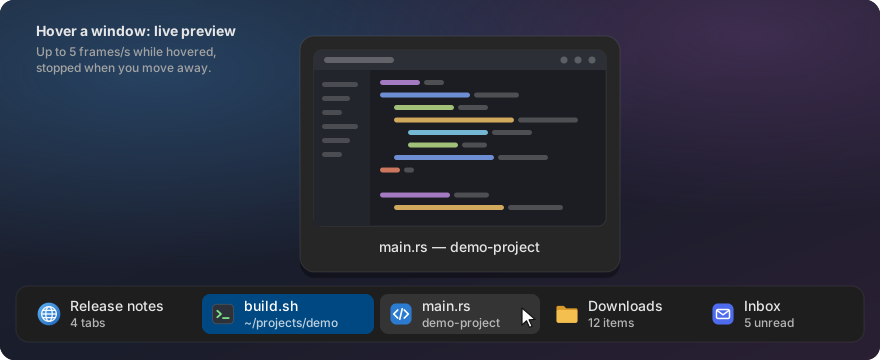
COSMIC ships a dock that groups windows by app, and a “Minimized Windows” applet. Neither tells me at a glance which windows I have open on the current workspace. The taskbar does: one item per window, with the app icon, the title and a second line that says something useful.

The second line comes from the first source that has something to say:
- the tab count of Firefox, COSMIC Terminal and COSMIC Files windows (“3 tabs”, “14 items”);
- progress or a status that the app reports to the dock, the same signal KDE and Dash-to-Dock read;
- the song or video that is playing (“▶ Title – Artist”);
- an unread count from the title, so “(3) Team chat” becomes “3 unread”;
- otherwise the second half of a long title, for example the project name in VS Code.
Rest the pointer on an item and a live preview of the window appears. Minimized windows show their last picture.
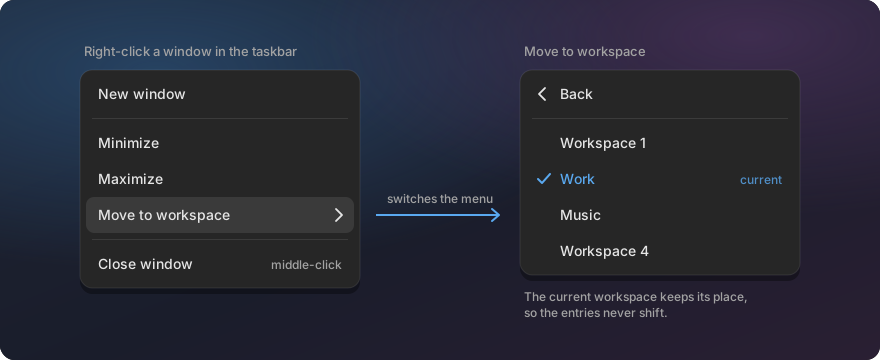
Click raises a window, a click on the focused one minimizes it, and a middle-click closes it. The right-click menu has the app’s own actions, and Move to workspace sends the window to another workspace by name or number, without dragging it through the overview.
When the panel gets full, the items shrink first and the rest go into a popup behind an arrow, with the same previews. The dock hides an app while its window is already in the taskbar, so nothing shows up twice.
Tray colours
The COSMIC tray draws many app icons in the theme colour, so a coloured icon becomes one flat shape and a red badge for new mail is gone. With this patch, tray icons keep their colours.

Workspace Keeper
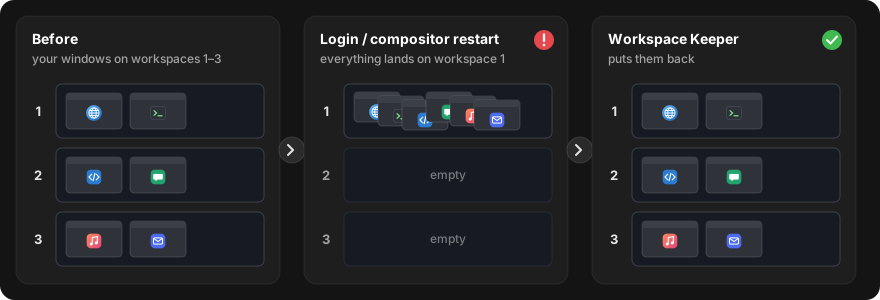
I keep one workspace per topic. After a login, or when the compositor crashes and restarts, every window lands on the first workspace and I sort them again by hand. Workspace Keeper remembers which workspace each window is on and moves the windows back. It matches windows by app and title, so it works for apps that do not restore their own position.
Show Desktop
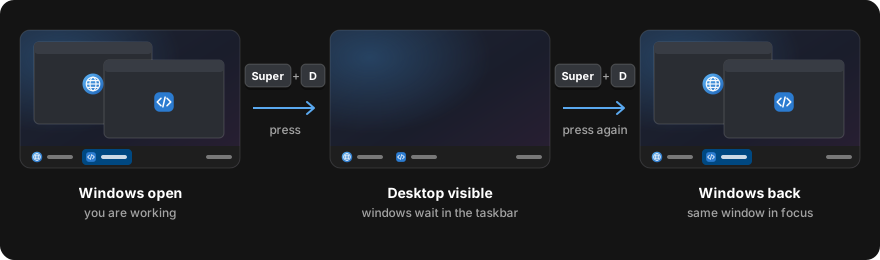
Super+D minimizes the windows of the current workspace, as on Windows. Press it again and they come back, with the window you were in on top.
How it is built
The taskbar, the tray colours and the tab counts are not separate apps. They are small patches on System76’s own code: the “Minimized Windows” applet and the App List from cosmic-applets, plus cosmic-term and cosmic-files so they can tell the taskbar how many tabs they have. COSMIC already does the hard parts: window tracking, icons, screen capture for the previews and the look of the panel. Patching it keeps all of that and looks like the rest of the desktop.
The installer builds the patches on exactly the COSMIC version you have installed and puts the result in your home folder. No system file is replaced: a user desktop entry with the same id takes the place of the system one, and uninstalling removes it again. A daily check notifies you when COSMIC was updated and says whether the patches still apply to the new version. Each patch is one commit, so moving the series to a new COSMIC version is mostly a git rebase.
Workspace Keeper and Show Desktop are plain Python with no dependencies. They talk to the compositor over the Wayland socket directly.
Install
One line, and a menu lets you choose the tools:
curl -fsSL https://raw.githubusercontent.com/jwillmer/cosmic-desktop-extras/main/install.sh | bash
Or name the tools you want:
curl -fsSL https://raw.githubusercontent.com/jwillmer/cosmic-desktop-extras/main/install.sh | bash -s -- taskbar ws-keeper
The patched tools need Rust and a few build packages. The installer checks for them and offers to install them, and the first taskbar build takes a few minutes. If you prefer to look before you run something, clone the repository and start with ./install.sh --dry-run all.
It is tested on Pop!_OS 24.04 with COSMIC. Other distributions with COSMIC may work but are untested. The project is GPL-3.0, like the COSMIC code it builds on, and it is not affiliated with System76.
The code, the documentation and the issue tracker are on GitHub: jwillmer/cosmic-desktop-extras. If something does not work on your machine, open an issue.