When I wrote about my patched COSMIC Text Editor, it was good at reading Markdown: files opened rendered, with a preview that handles READMEs, Mermaid diagrams and code colours. Writing was another matter. You typed every #, - and | by hand. Then a reader asked for a more comfortable Markdown editor, one they could switch their notes to from the apps they use today. Version 0.5.0 is my answer.
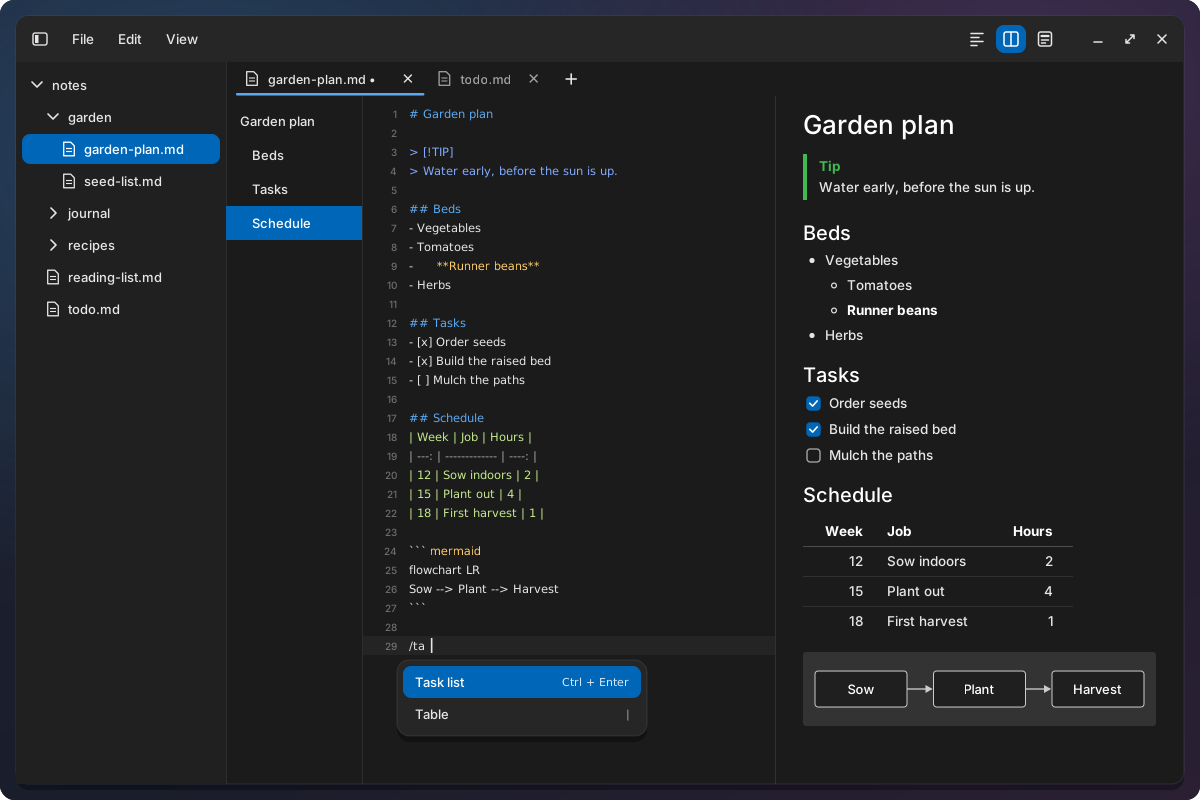
It is not a WYSIWYG editor, and I will come back to that. The file stays plain Markdown, and the editor does the typing you used to do yourself.
What writing feels like now
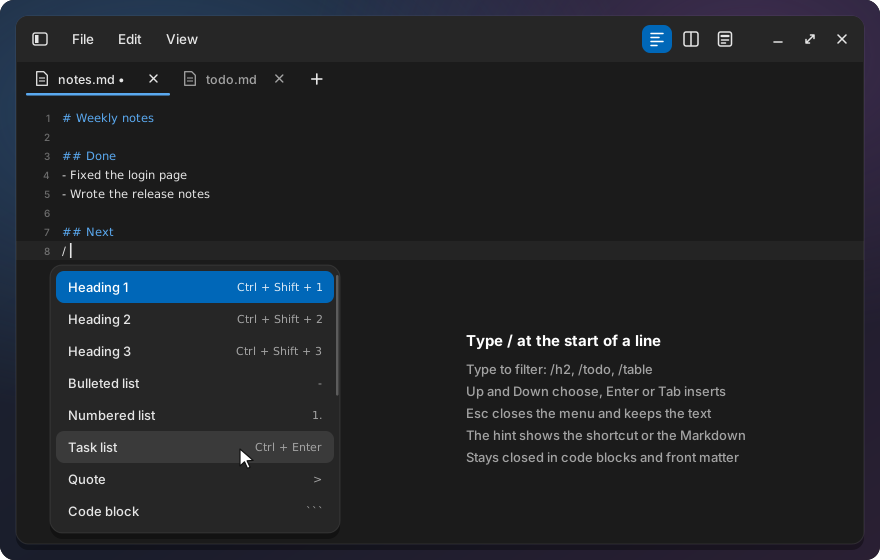
The “/” menu. Type / at the start of a line and a menu opens: headings, bullet, numbered and task lists, a quote, a code block, a table, a divider, a link, an image, a Mermaid diagram, and bold, italic, strikethrough and inline code. Typing filters it, so /tab and Enter give you a table. The / turns into the Markdown, and one Ctrl+Z gives back what you typed. The menu stays closed in code blocks, HTML and front matter, and a setting turns it off.
Shortcuts. Ctrl+B, Ctrl+I, Ctrl+Shift+X and Ctrl+` wrap the selection, or the word at the cursor, in bold, italic, strikethrough or code. Pressed again, they take the markers off. Ctrl+K makes a link, and pasting a URL over selected text does too. Ctrl+Shift+1 to 6 set the heading level, Ctrl+Shift+0 makes the line plain text again.
Lists. Enter starts the next item, for bullets, numbers, tasks and quotes. Enter on an empty item ends the list. Tab and Shift+Tab nest and un-nest, numbers stay in order, and Ctrl+Enter ticks a task. Backspace right after the marker removes it, or moves a nested item out one level, as you know it from other editors.
Tables. Tab and Shift+Tab move between cells, Tab in the last cell or Enter in a cell adds a row, and the columns line up after every step. No more counting dashes.
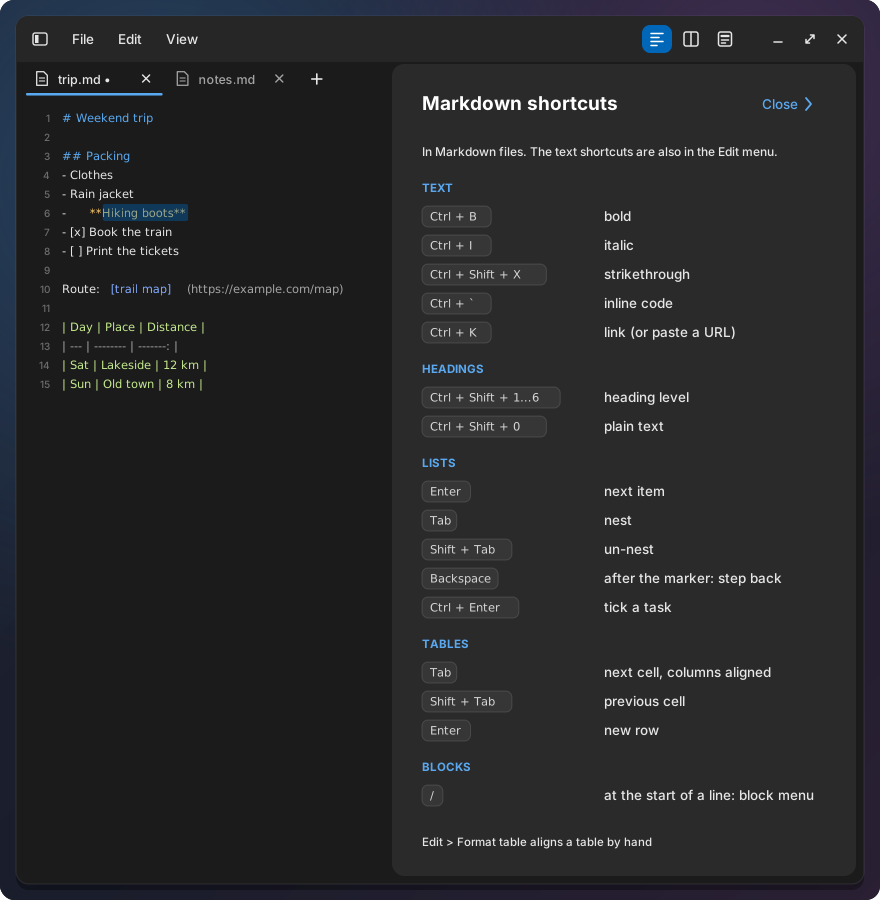
Shortcuts panel. Press F1 and every Markdown shortcut is listed in a side panel next to your note, and it stays open while you type. It came with v0.5.1.
Typing in Preview. Preview is read-only, and until now a key typed there went nowhere. Now the tab switches to Source and the text lands at the end of the block you were reading. Not a single key is lost.
How it was checked
Before the release I put the editor next to the tools people actually use for Markdown: Obsidian, Typora, VS Code with the Markdown All in One extension, and Apostrophe, a Markdown editor for GNOME. The question was not “does it have features” but “would someone who uses one of these every day feel at home, or feel the gaps?”
On par. The formatting shortcuts, list continuation, nesting and Backspace, and moving through tables with Tab now work the way those editors taught us. The review also found rough edges in my own code, such as a stray - left behind by Backspace on an empty list item and Tab breaking a table. Those are fixed, each with a test.
Ahead. Three things I am proud of. The “/” menu: of the four, only Obsidian has something like it, as an optional plugin that lists commands; here / offers the Markdown blocks themselves, on by default. Change history: the marks for what you changed since the last save, and Compare with saved, work for every file, with no git and no plugin. And README rendering: centred logos, badge rows, <details> sections and GitHub alerts render close to how GitHub shows them, which matters if most of your Markdown lives in repositories.
Missing. Honestly, a few things that will matter if you come from Obsidian:
- no wiki-links (
[[Note]]) and no backlinks, so it is not a knowledge base; - no spell check;
- no export to PDF or HTML;
- no pasting an image from the clipboard into the note;
- no true WYSIWYG mode where the markers hide while you type. You write in Source or Split and read in Preview.
If your notes depend on links between them, stay where you are for now. If you mostly write documents, READMEs and lists, give it a try.
The 5 MB file
The most interesting part of the review was a file I almost did not test: a 5 MB Markdown file. Before 0.5.0 it never opened. After 40 seconds the window still had not appeared. It turned out three separate things were slow, and each would have been enough on its own.
The parse grew with the square of the file. The preview turns Markdown into blocks with the parser from iced, the toolkit COSMIC is built on. After every block, it copies the rest of the text. For a small file nobody notices. For a large one the copying adds up: double the file and the work becomes four times as much. The fix was to cut the text into parts where a new top-level block starts and parse the parts one by one. Same result, but the 5 MB file now parses in 0.55 seconds instead of 7.7. Above 256 KB the parse also moves to a background thread, so the window shows up first and the preview follows.
The preview drew everything, every frame. That file became about 145,000 elements in the preview, and every frame built all of them, even though a screen shows only a few dozen. Now the preview draws only the blocks near the view, at most 300. The space of the others is estimated and then measured, so the scrollbar stays honest, and selecting and copying still span the whole document. The outline panel got the same treatment.
The colours were done for the whole file at once. The text engine, cosmic-text, colours the complete file before it shows the first frame. For 5 MB of Markdown that alone was 6 seconds. So any file over 1 MB now opens as plain text, with a notice saying so. A large Markdown file also opens in Source, with a Show preview button if you want the rendered page anyway.
Together: the window for the 5 MB file opens in about 2 seconds, and pasting 2 MB of text into it takes 0.08 seconds, as one undo step. One limit remains, inside cosmic-text: undoing a very large paste in the middle of a very large file is still slow.
I reported the causes upstream: the parse that grows with the square of the file in iced #3547, the colouring of the whole file in cosmic-text #552, and both together on the cosmic-edit issue about large files.
Pin an app to a workspace
The release also has one change outside the editor. Right-click a window in the taskbar and choose “Always open on” a workspace. New windows of that app then open there, and starting the app from another workspace takes you there. A small pin on the taskbar item shows which apps are pinned. It needs Workspace Keeper.
Install and update
New install:
git clone https://github.com/jwillmer/cosmic-desktop-extras.git
cd cosmic-desktop-extras
./install.sh text-editor
Already installed? In your clone:
./install.sh --update
It pulls the latest version and rebuilds every tool you have installed. Close and reopen the Text Editor afterwards. In Markdown files, Enter, Tab and Backspace now do more than before; with Vim bindings they work as they always did.
The full list of changes is in the v0.5.0 release, and every shortcut, threshold and limit in the Text Editor docs. The code is on GitHub: jwillmer/cosmic-desktop-extras. How the editor is built as a patch series, and how it was tested, is in the first editor post.
The editor now has over 400 unit tests, and the new Markdown features were also driven on screen in a headless test session before the release. As before, the code was written with AI assistance, so the features go upstream as descriptions on the cosmic-edit issues, not as pull requests. The images in this post are mockups; real screenshots are in the docs.
And if you try it for your notes: tell me what is still missing. That is how this release started.
Discuss on Mastodon: det.social/@jwillmer