Since I wrote about writing Markdown in my patched COSMIC Text Editor, two releases came out. Version 0.6.0 gives the editor the search I used every day in Notepad++. Version 0.7.0 lets COSMIC Files show a folder’s own icon, so my projects folder finally looks like one. Both are part of Desktop Extras for COSMIC™, the collection of small tools from my first post. It is an unofficial, personal project and not affiliated with System76.
Find and Replace, like Notepad++
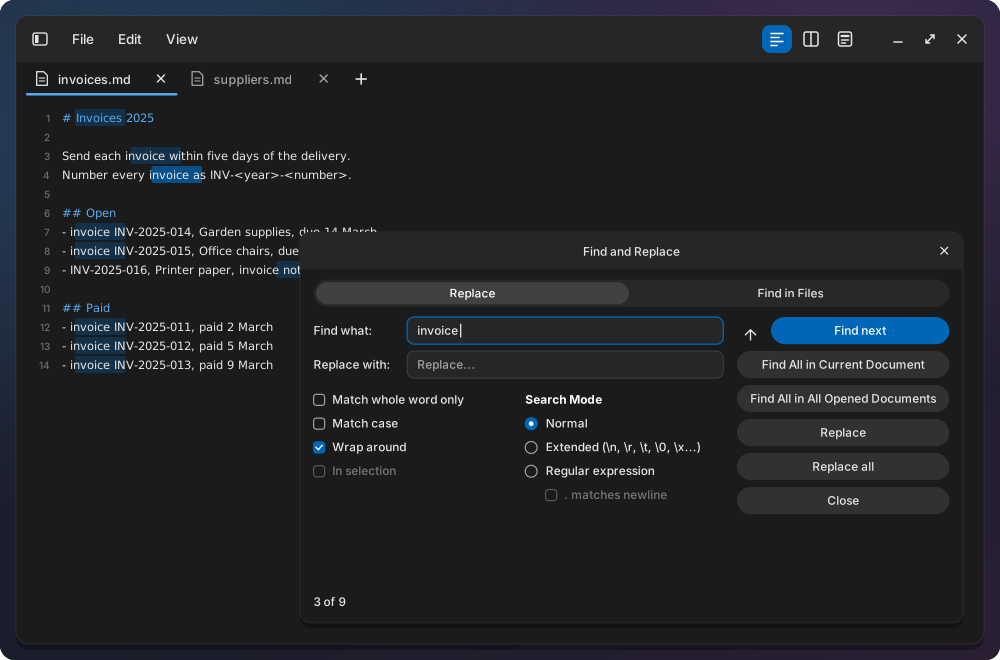
Ctrl+F or Ctrl+H opens a Find and Replace window. It is a separate window, so I can move it next to my text instead of having it cover the line I am looking for. The layout follows Notepad++’s Replace tab, so if you come from Windows your hands already know it.
The options are the ones I missed: match whole word, match case, wrap around and in selection. There are three search modes. Normal finds the text as typed. Extended understands \n and \t, so you can find a line break. Regular expression does what it says, and $1 puts a captured group into the replacement.
While you type, the window counts the matches (“3 of 17”) and tints every one in the text. F3 and Shift+F3 jump to the next and the previous match, also after the window is closed. Replace all is one undo step.
Find All and Find in Files
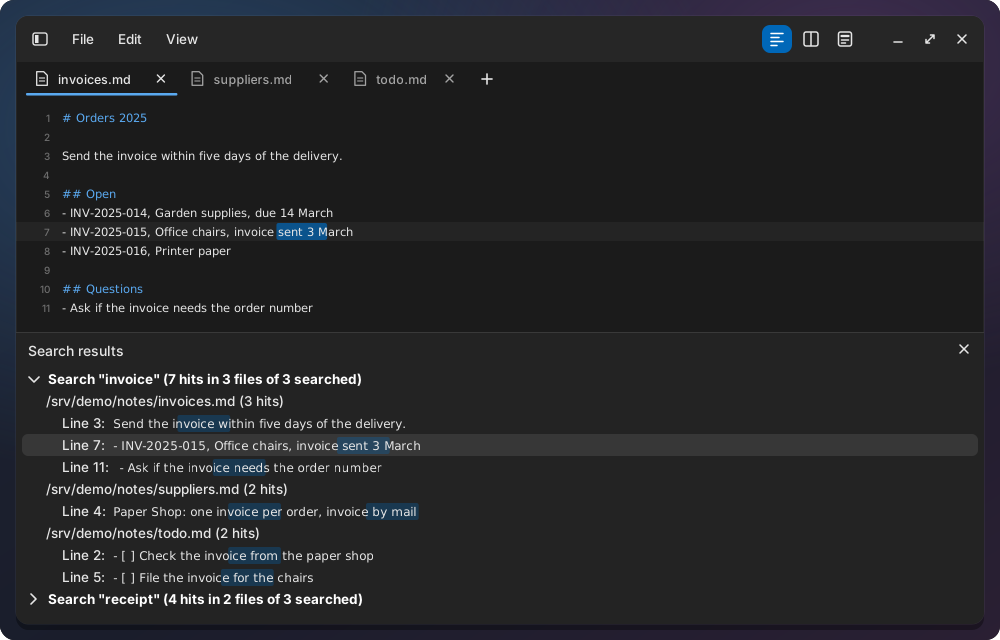
Find All lists every matching line, of the current file or of all open files, in a results panel at the bottom. A click on a line jumps there. F7 shows and hides the panel, and older searches stay in it, folded.
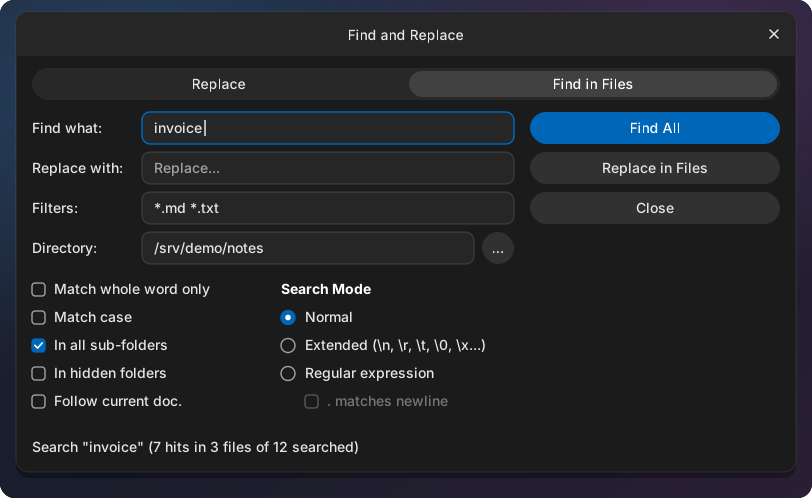
Find in Files (Ctrl+Shift+F) searches a whole folder, with file filters such as *.md *.txt and subfolders if you want them. It runs in the background, so the editor stays usable. It can also replace in all those files at once. Each file is written in one step, so a crash never leaves a file half written. Open files with unsaved changes are replaced in their tab, where Undo works. Files that are not open have no undo, so look at the Find All list first.
More in the editor
Clickable links. A link in the Markdown preview opens on click. In the source text, links are underlined and open on double-click, as in Notepad++.
Selection scrolling. Selecting with the mouse past the edge of the editor or the preview scrolls the view along.
Status bar and Go to line. An optional status bar shows the cursor position, the selection, the line ending, the encoding, the indentation and the language. A click on the line ending converts the file to the other one. Ctrl+G jumps to a line, or to line:column.
A language per tab. Under View, Language, or with a click in the status bar, any tab can be set to a language, an untitled draft too. A draft set to Markdown gets the preview, one set to JSON gets the JSON tools, and Save As suggests the matching extension. Since 0.7.0 a new tab also guesses its language from the text: paste a JSON object and it becomes JSON, with colours, and a first line like #!/bin/bash makes it a shell script. A language you pick in the menu still wins.
Large files. A 20 MB file now opens about as fast as in the stock editor. The work for the change marks happens after the window shows. And two edits far apart in a 10 MB file now mark only those two lines, not every line below the first edit.
Folders with their own icons
COSMIC Files shows a special icon for Music, Pictures and the other standard folders, but you cannot give your own folder one. The patched Files reads the icon from a small .directory file inside the folder, the same file KDE’s Dolphin uses. It also comes with a COSMIC-style code folder icon for your projects.
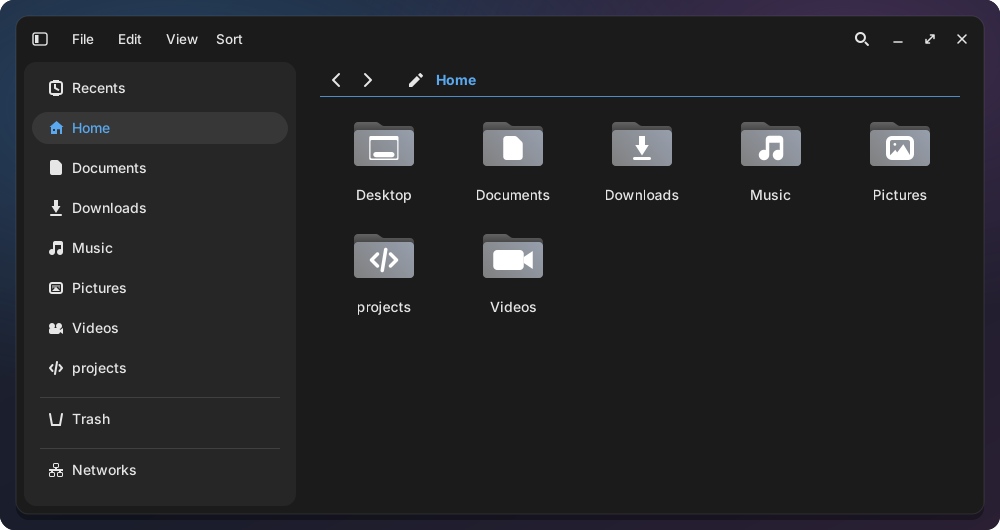
To give your projects folder the code icon, create ~/projects/.directory with these two lines and press F5 in Files:
[Desktop Entry]
Icon=folder-development
Icon= takes any icon name from your icon theme, or the path to an image. The icon shows in the grid and list views, in the sidebar and in the file dialog. Folders that already have a .directory file from KDE now show its icon too.
Smaller things since the last post
- Ctrl+V in the file dialog (0.5.2): with a copied path in the clipboard, Ctrl+V in the editor’s Open dialog opens that file at once. Ctrl+L edits the path with the whole path selected.
- Taskbar on a side panel (0.5.3): on a left or right panel, each window is a square icon with small badges, and hovering shows the title and the live preview beside the panel. I do not use a side panel every day, so please report what you find.
-
Updates survive COSMIC updates (0.6.0): every tool is now built from the COSMIC version its patches were tested on, so a COSMIC update no longer breaks
./install.sh --update.
Upstream
As before, I would rather see these features in COSMIC itself, and the code was written with AI assistance, so they go upstream as descriptions, not pull requests. For folder icons the requests are cosmic-files #591 and cosmic-files #1427, and I described how this project does it in a comment there. The faster large files belong to cosmic-edit #182, and converting line endings from the status bar to cosmic-edit #542. If you want one of them in COSMIC, add a 👍 or your use case there.
Install and update
New install:
git clone https://github.com/jwillmer/cosmic-ext-desktop-extras.git
cd cosmic-ext-desktop-extras
./install.sh text-editor files-tabs
Already installed? In your clone:
./install.sh --update
Then close all Text Editor and Files windows and open them again.
The full lists of changes are in the v0.6.0 and v0.7.0 releases. Every option and shortcut is on the project website: search in the Text Editor, editing, the status bar and languages, and Files with folder icons. The code is on GitHub: jwillmer/cosmic-ext-desktop-extras.
The images in this post are mockups; real screenshots are in the docs.
Discuss on Mastodon: det.social/@jwillmer